

Workflows 2.0
Then ask AI agent to create workflows for you.
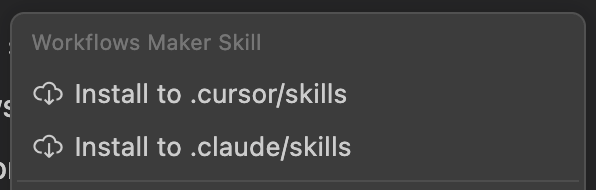
By the end of 2025, Skills and Workflows became the most popular topics in AI development. Skills - a simple yet extremely powerful mechanism that is already supported by most AI agents. With the Supercode extension, you can now create and use Workflows of any complexity and flexibility in your IDE.
Six months after the release of Smart Actions, we saw hundreds of examples of amazingly long and branching action chains created by our users: from integrations with task trackers and messengers to fully automated development cycles with step-by-step refactoring, abstraction and module extraction, code deduplication, and full test coverage.
We are proud of this result, and during this time we received a huge amount of feedback and requests for improvements. Today we are pleased to present the updated mechanism: Workflows.
This update contains 3 key features:
- Workflows UI: now all Workflow steps are created in one UI (or file), in a couple of clicks, dozens of times faster and easier.
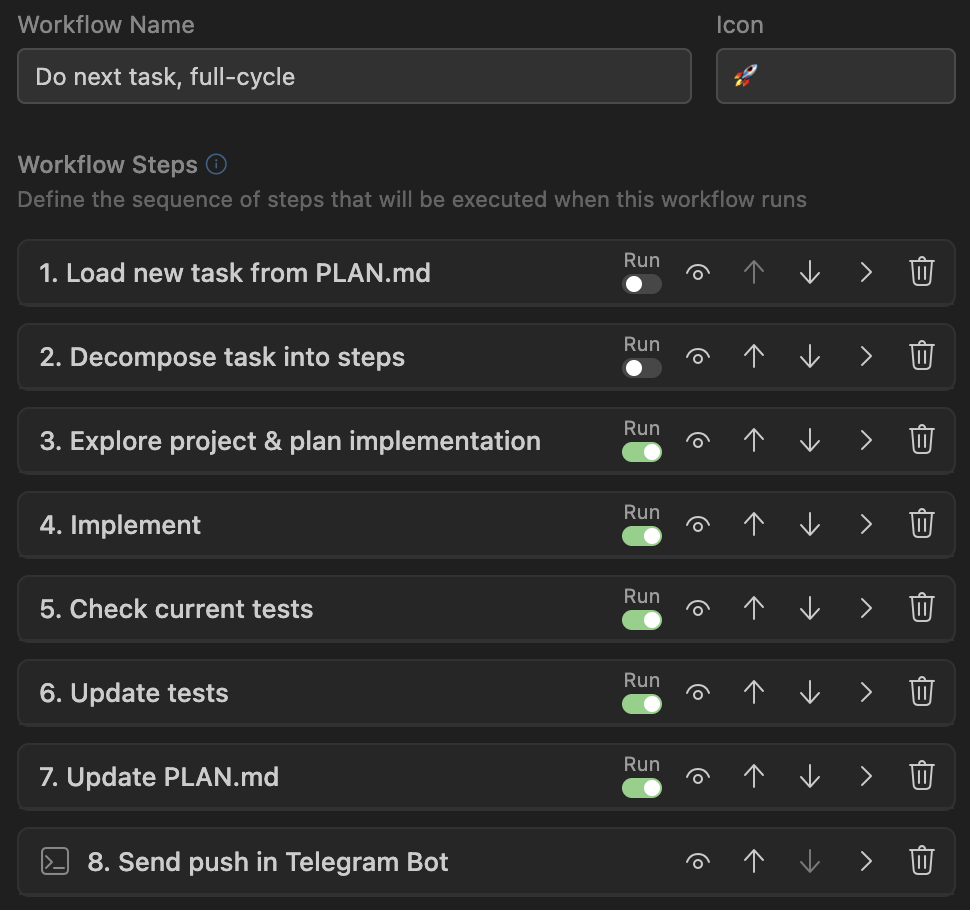
- Workflow State: you see the execution process and information for each step in real time
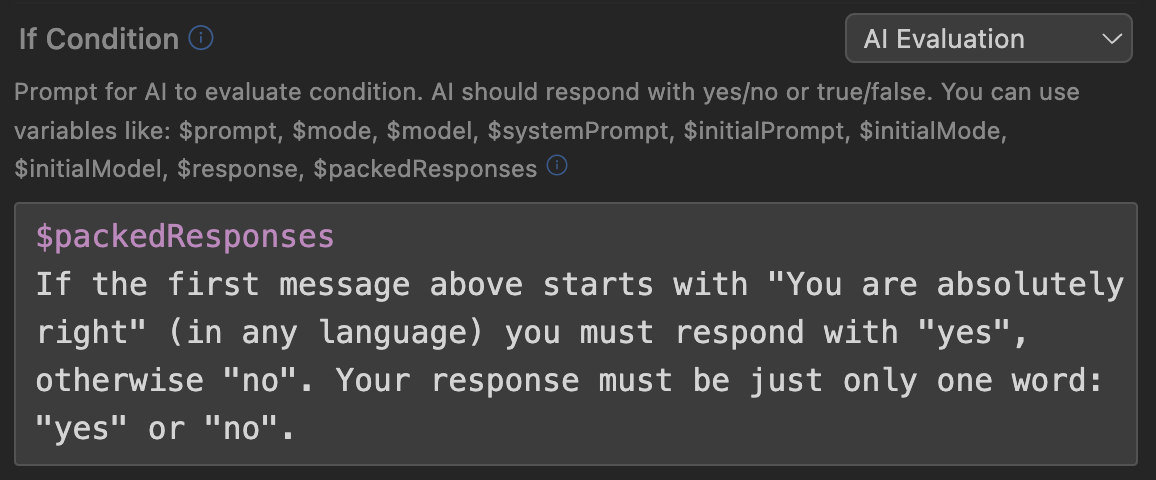
- Smart Conditions: now you can create conditions for steps through JavaScript, HTTP requests, shell commands, and even AI queries, so it decides based on input data whether the check passes.
Why Workflows?
Why are Workflows more powerful than Skills? How does a workflow differ from simply providing the agent with a list of steps? Why are shell commands in workflows more convenient than hooks? Why do we need conditional steps that only execute in certain cases? Let's figure it out.
The two main pillars of workflows are determinism (guaranteed execution) and encapsulation (isolation) of future steps. Behind these long, intimidating words lie simple ideas: let's break them down with examples.
Guaranteed Execution
Let's say we send the following prompt, model - Auto (i.e., Composer-1), to a Next.js frontend project:
src/controls2. Understand how state management works in stores
3. Create a basic table component: with sorting, filtering, data loading from the backend, and beautiful animation
4. Create a
/users page with a user table5. Create a
/products page with a product tableDo not stop executing the task until all the above items are successfully completed.
Naturally, the agent immediately added all steps to the todo list and started working. The first and second steps loaded the context quite a bit - reading ~30 files consumed almost 100k tokens. Let's say there were difficulties with the third step: the agent had to make several iterations of fixes and checks through the built-in browser before the table worked as it should. In the process, it created test pages to check the table's functionality. At this point, the context is already 80% full.
What do you think is the probability that after completing work on the table, the agent will move on to creating the /users page? And to creating /products?
Task with two asterisks: what is the probability that after you write "yes, for God's sake, of course, I literally wrote to you about two pages, why are you asking?", the agent's next response will start with the words "You are absolutely right!"?
Fortunately, we don't have to guess: we literally conducted this experiment with a test Next.js project on 7 models: Sonnet 4.5, Opus 4.5, Haiku 4.5, GPT-5.2, Composer-1, Gemini 3 Pro, Gemini 3 Flash, with 5 runs for each model. The criterion is simple - were all steps successfully completed after a single user request.
The average result for Opus 4.5 and GPT-5.2 is 80% (8 successful tests out of 10), Sonnet and Gemini 3 Pro - 60%, average in the "Haiku, Composer-1 and Gemini 3 Flash" group - 46% (7 out of 15).
It's easy to notice - even flagship models, in 1 out of 5 cases, didn't complete the task from a single request. The last group of popular inexpensive models didn't finish the work in half the cases. At the same time, the task itself and the described problem scenario are quite typical. What if the user's workflow has 20 steps, some of which should only execute under certain conditions?
Guaranteed execution (determinism) is a basic property of Workflows: if there is a step in the workflow (sending a task to the agent, running a script, etc.), it will be guaranteed to execute.
Isolation of Future Steps
When you give the model a set of actions it needs to perform, it knows all actions in advance, and cannot help but pay attention to the latter while executing the former.
This concept is understandable to people: if we know in advance what result is expected of us, we can try to adapt our work to get there faster. Sometimes this is great and can save time. But there are processes where meticulous following of instructions is necessary; without them, you won't get a good result.
To make it easier, here's an example. Let's say we give the model a task (desktop Electron application):
src/watchers directory (30 files)2. We clearly have a memory leak - 17gb occupied after an hour. Fix the detected leaks.
Let's say these files have two types of leaks:
- instead of deleting the timer, it's turned off:
setInterval(() => { if (!active) return; ... }) - incorrect cleanup of global cache (top-level
const map = new Map())
And in the first 5 files in src/watchers, only errors of the first type are found.
Often, an agent that knows in advance that it's expected to fix leaks will try to "cut corners": after finding the same problem 5 times in a row, it will write "Let's immediately check all files with a regexp search", search for setInterval, and only find files that had problems of the first type, while completely missing the second type.
The "expected result bias" problem is not solved by increasing intelligence or model price; even people are susceptible to it. In situations where step-by-step information provision improves result quality (deep file analysis before refactoring, full documentation review before implementation), workflows guarantee that information about future actions does not enter the agent's context until the moment when they need to be executed.
Comparison with Skills
| Feature | Workflows | Skills |
|---|---|---|
| Process/skill packaged in a separate folder, with all related scripts and data | Yes | Yes |
| Easy to import and share | Yes | Yes |
| Can be used in other workflows/skills (create hierarchical processes) | Yes | Yes |
| Allows embedding script calls (bash/js/python) into the agent's work process | YesBefore and after any steps, with any conditions and guaranteed execution. | PartiallyYou can ask the agent to run scripts after certain steps. There's no guarantee it will do so. You can use hooks, but they are global, without binding to steps, conditions, or a specific Skill. |
| Guaranteed action execution | YesA step can be skipped only if it has an explicit execution condition that is not met. In all other cases, the step will definitely be executed. | NoThe list of steps in a Skill is simply a request for the agent to perform a set of actions. Whether they will actually be executed is up to the agent to decide. |
| Context isolation | YesYou can reset the context even after each step. The agent doesn't know future steps in advance and cannot cheat by adapting work to the expected result. | NoThe description of all steps in a Skill is loaded when the Skill is loaded. Hypothetically, you can ask an orchestrator agent to execute each step in a subagent but in practice this significantly degrades the result. |
| Conditional steps (branching) | YesYou can set a step execution condition, either as a prompt for a separate AI checker ("Execute the test update step only if there were changes in components"), or as JS code, HTTP request, or shell command (! npm run test). | NoYou can describe conditions to the agent under which it should execute or skip a step, but following these rules remains at the agent's discretion. |
Creating a Workflow
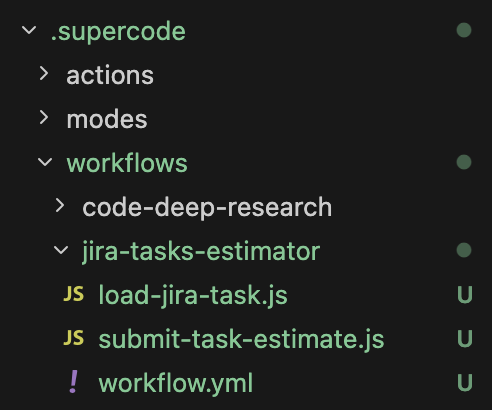
Workflows are stored in yml/json files inside .supercode/workflows/ (local - in the project root, global - in the user directory).
In one file you can describe either one or several workflows. They can be stored in any nested folder, for example, we find it convenient to separate workflows into a separate directory and store the workflow description right next to the scripts used (similar to Skills).
Global Settings
A workflow has two groups of global settings - Triggers and Advanced Configuration.
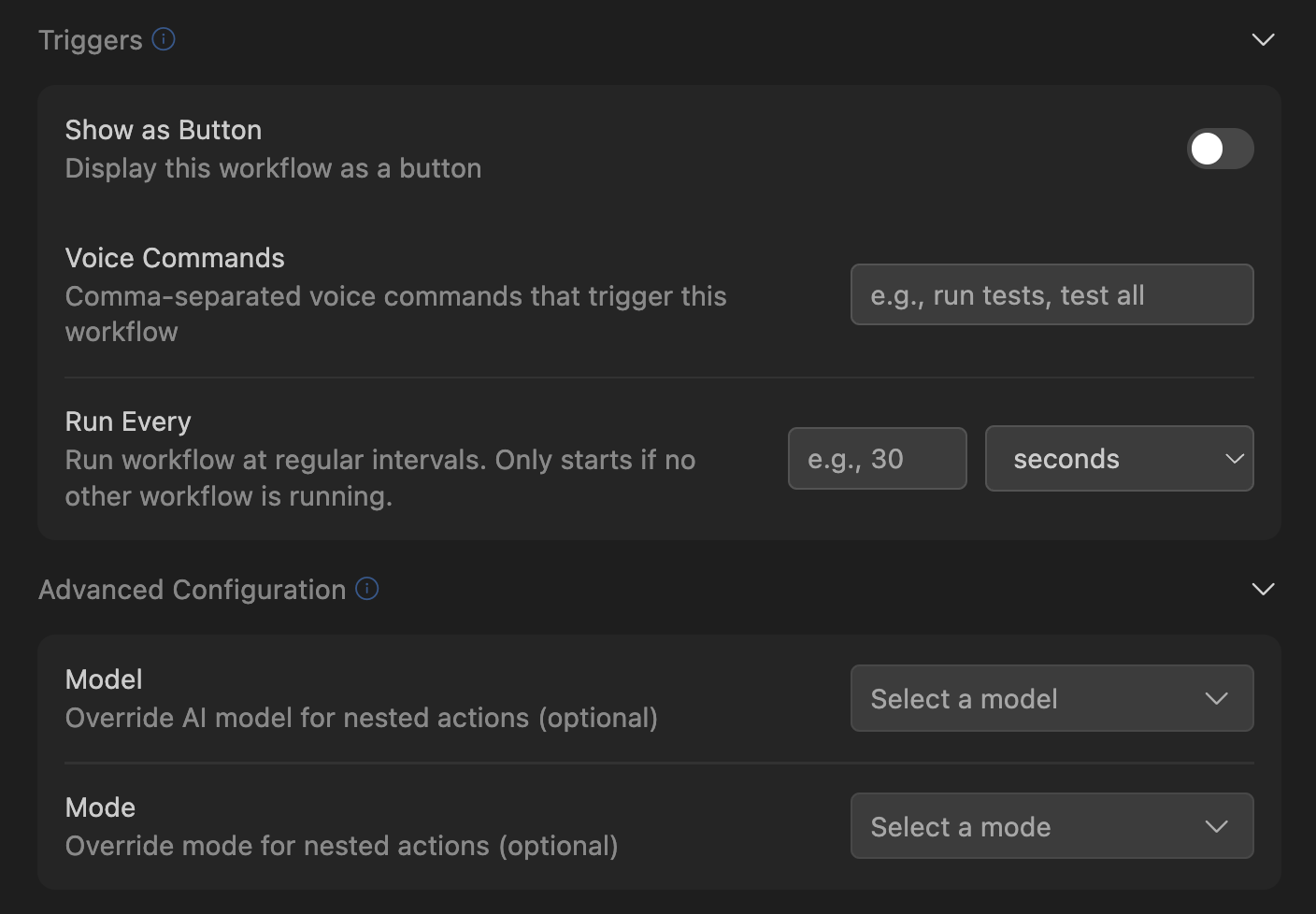
In the triggers group, you can configure how you want to launch the workflow: by clicking a button in the UI, and/or based on a voice command. Note - even if you haven't selected any of the options, your workflow is always available by clicking from the Supercode > Workflows menu, and it can always be launched from another Workflow.
In the Advanced Configuration group, you can configure the default model and agent mode that will be selected when the workflow is launched. Note: if any step of the workflow explicitly overrides the model or mode - then this override (for that specific step) will take priority over the default settings.
Workflow Steps
A Workflow consists of a sequence of actions (steps) that will be executed in order.
A step can be a command (prompt) for the AI agent in your IDE. A step can be a script call. Or it can dynamically form a new prompt or system prompt (using a script or AI query). It can override the current active model or agent mode. A step can contain a condition that determines whether it will be executed or skipped. And it can also contain an unlimited number of nested steps or references to other Workflows. Let's examine each of these capabilities in detail.
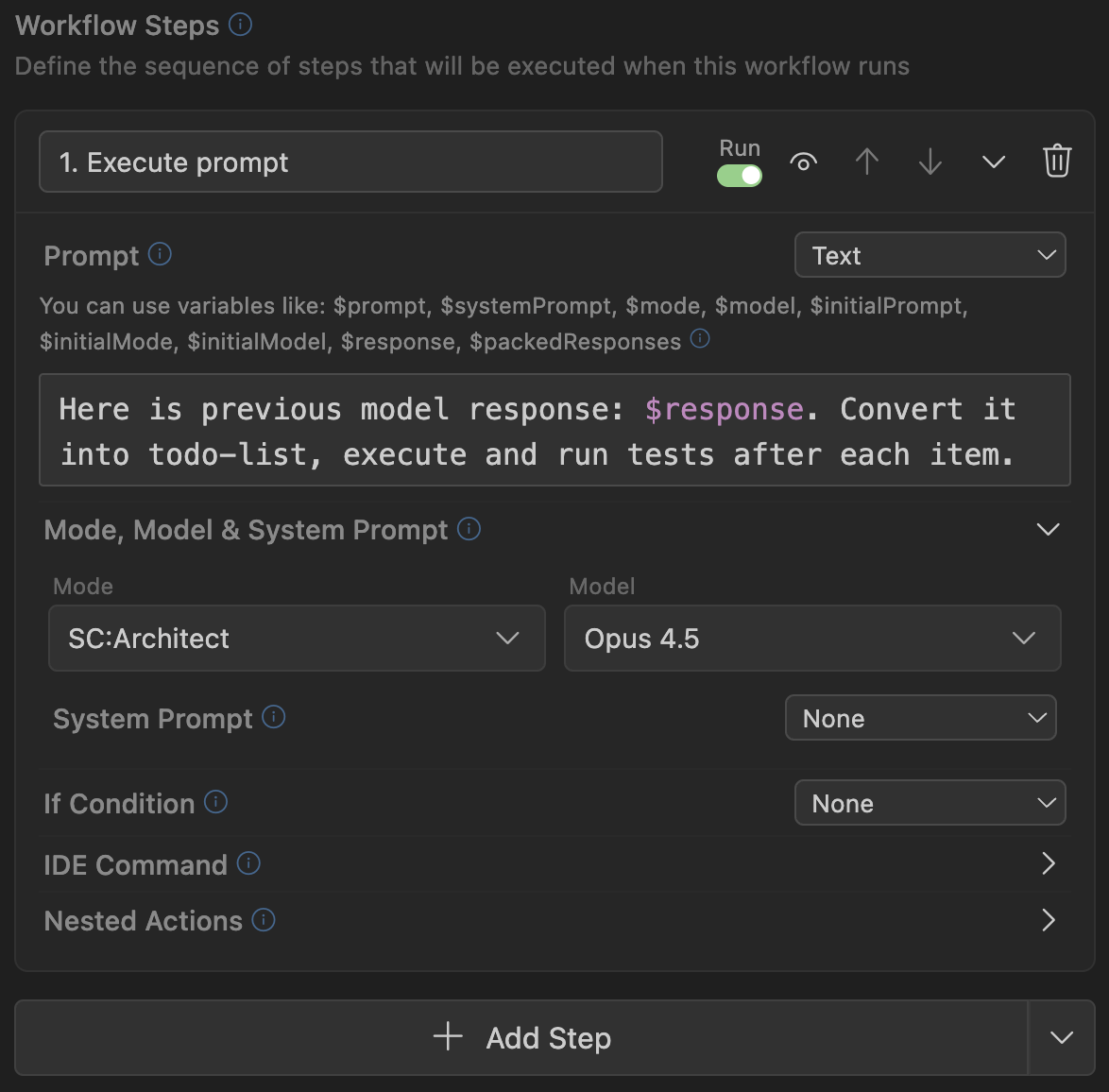
Three Types of Steps
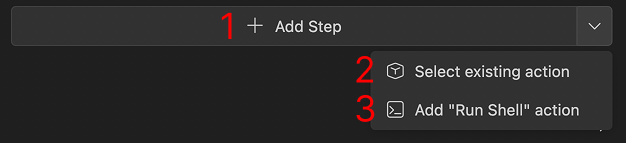
In each workflow, as well as in all nested actions, you can create three types of steps:
- Add Step: standard option, creates a regular step that you can configure for your tasks.
- Select Existing Action: creates a step-link to an existing Workflow or Smart Action.
- Add "Run Shell" action: creates a step that executes a shell command (for example, runs a Node.js or Python script).
Standard Step
This is the main type of steps that make up Workflows. Each step has:
- Name
- Whether this step should launch the AI agent in your IDE (Run icon with toggle)
- Active status (eye icon, with which you can temporarily mark unused steps as inactive)
- Set of settings (prompt, system prompt, model, agent mode, IDE command, execution condition)
- Set of nested steps
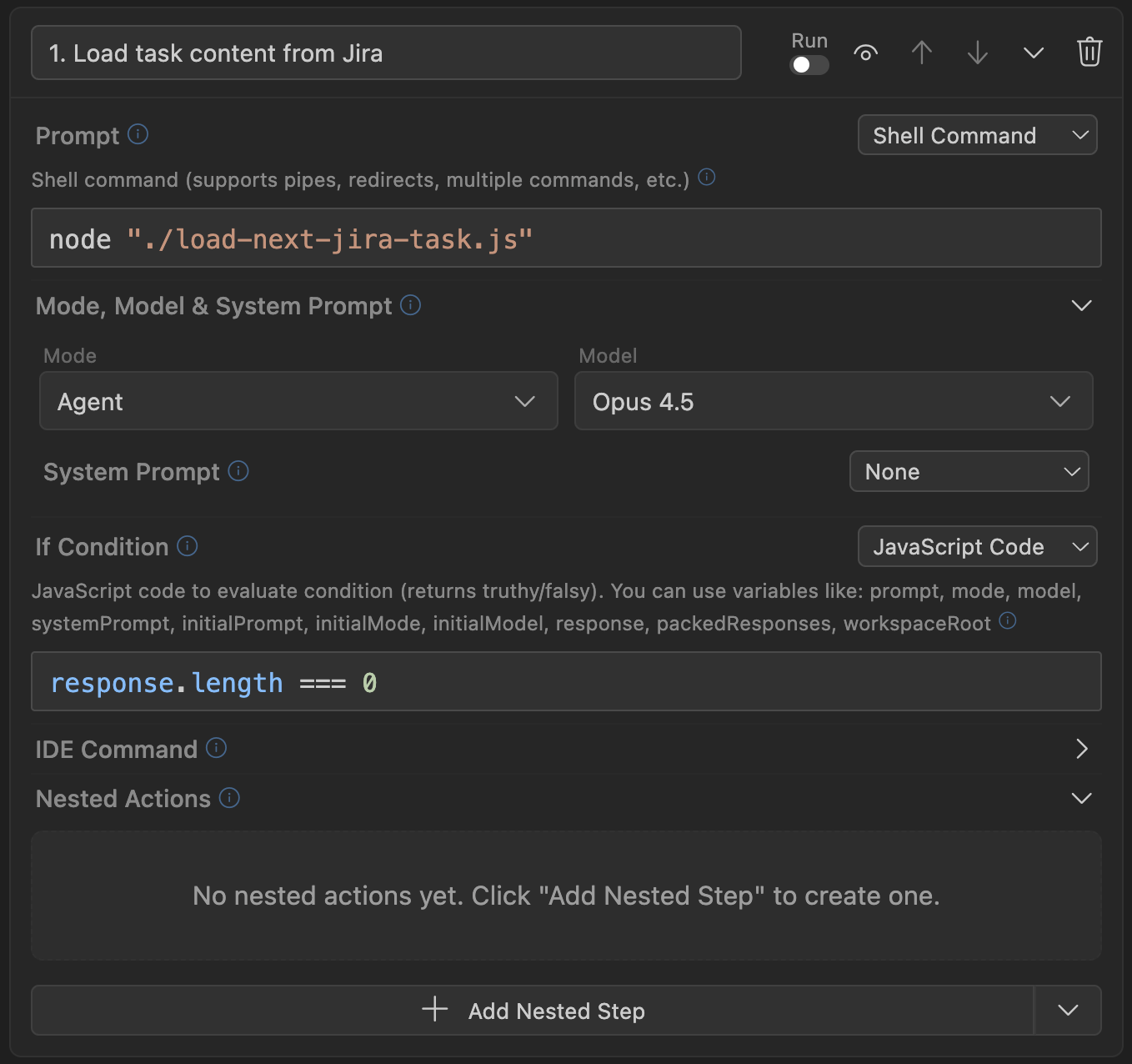
Prompt and System Prompt
There are 5 ways to update a prompt or system prompt:
- Text
- AI generation
- Shell command
- HTTP request
- JavaScript code
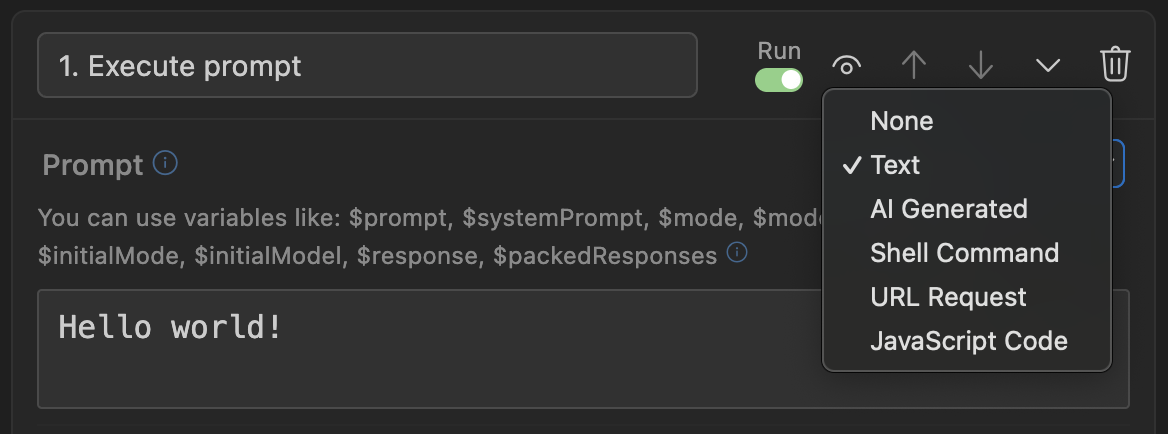
Text
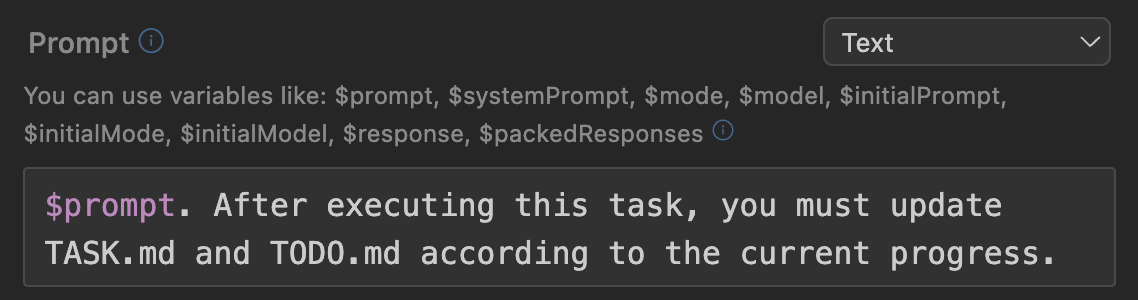
This is the simplest option: you can simply set static text for the new prompt, which will be passed to the AI agent. Or you can use available variables that will be automatically replaced with values from the current context.
AI
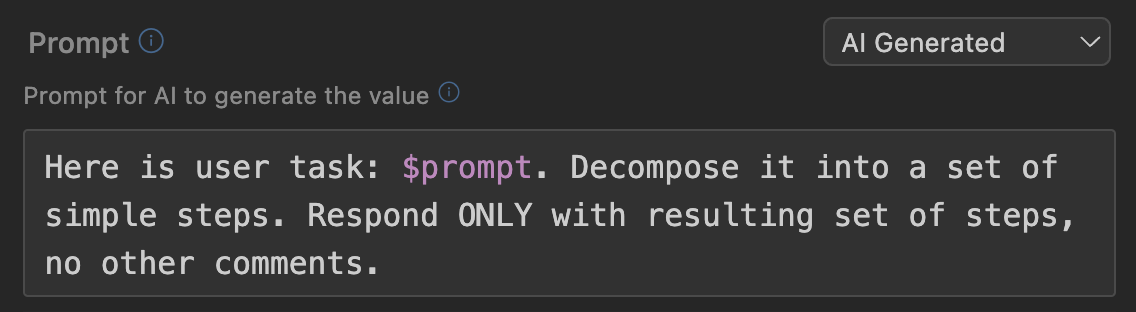
This is a powerful mechanism that allows you to generate the text of a new prompt using a query to a separate Supercode AI model. You can also use available variables (for example, the current prompt via $prompt), and ask the AI to rework the task: break it down into stages, translate it to another language, remove unnecessary parts, structure it or add missing details, consider security nuances, and much more. Imagine that you can automatically improve your prompt through ChatGPT before passing it to the AI agent. This is exactly what this type of prompt generation allows you to do.
Shell Command

This type allows you to execute any shell command (or chain of commands) and use the command's standard output (stdout) as the new prompt.
Including, scripts can be used as commands: node ./my-script.js or python ./get-data.py. Using this mechanism, you can export task text from task trackers, pull current bugs from Sentry, access APIs, databases, get information from logs, and much more. As in all other cases - you have access to current variables.
URL Request

This type allows you to execute a POST request to any URL and use the response (JSON) as the new value. Current variables are sent in the request body (application/json).
JavaScript Code
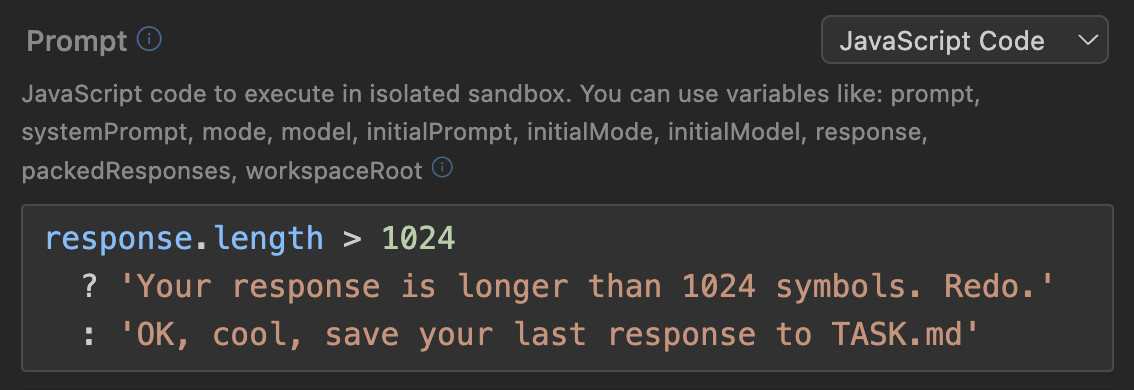
This type allows you to execute any JavaScript code and use its result as the new value. Current variables are available as global variables (no dollar sign prefix needed to access them, just prompt, model, response, etc).
Available Variables
With any type of prompt or system prompt override, you can use variables that contain the state of the current context:
$prompt- Current prompt text$systemPrompt- Current system prompt text$response- Last response from the AI agent. Note: this is literally the last text message written by the agent. If the agent performed several actions (edited files, thought, executed commands in the terminal, etc), then this variable will contain exactly the very last block of text that was written by the agent, not all of its text messages since your last request. This variable is useful when you ask the agent to complete its work with some text response: in that case, that response will be in this variable.$packedResponses- All text messages that were sent by the agent since your last request, packaged in XML-like format (...<message from="ai-assistant">...</message>...). This variable is suitable when you want to analyze all agent actions since your last request.$model- Currently selected model$mode- Current agent mode (agent/plan/debug/etc/or Custom Mode name)$initialPrompt- The prompt that was in the input field when the workflow was launched.$initialModel- The model that was selected when the workflow was launched.$initialMode- The mode that was selected when the workflow was launched.
Mode and Model
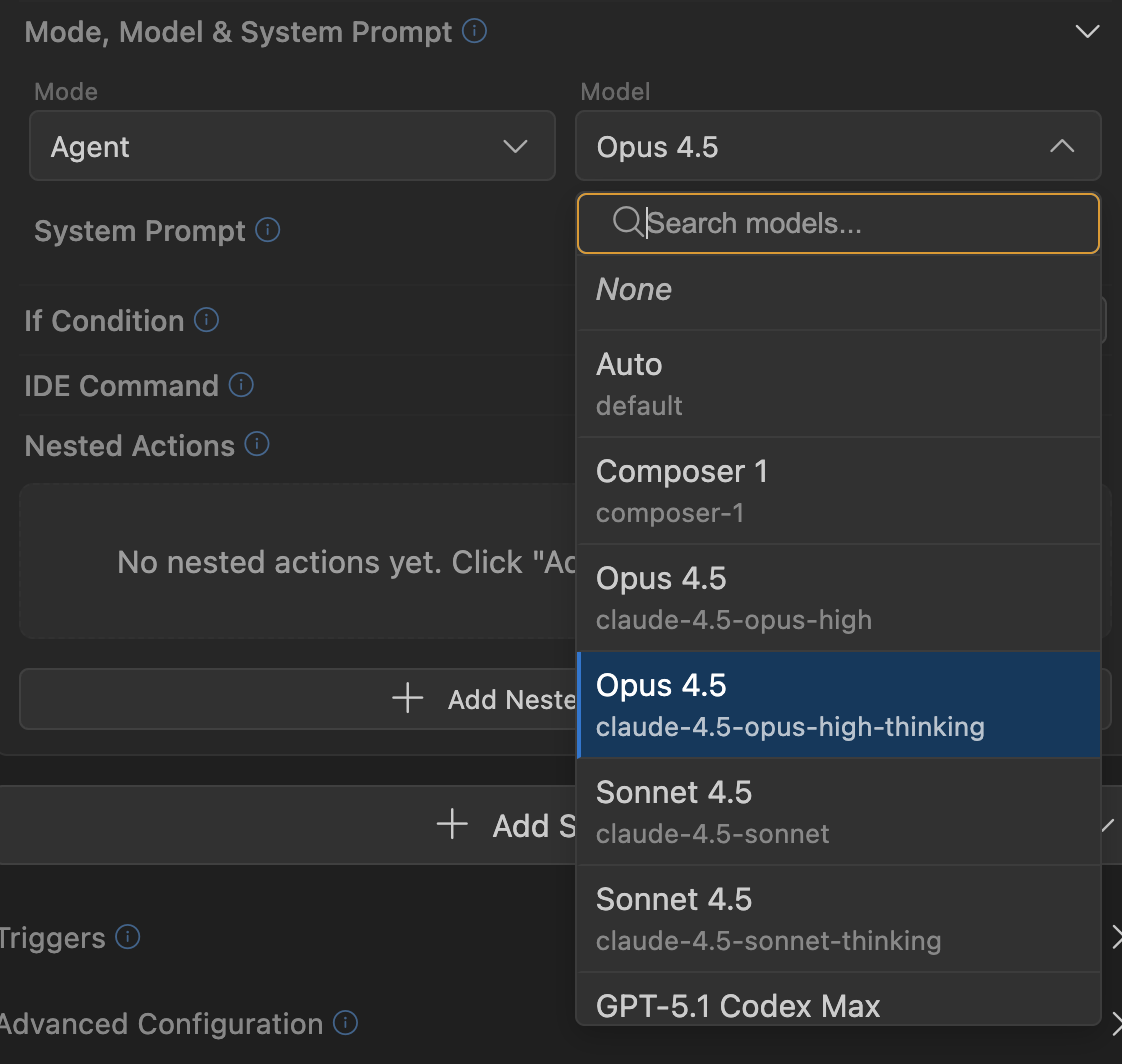
Each workflow step can switch the current model and agent mode. This mechanism allows you to flexibly adapt work: use smarter models for planning changes, and cheaper ones for editing code. You can use analytical modes to explore the codebase and find answers to your questions, then automatically enable Debug mode to find and fix bugs.
Conditional Steps (Branching)
For each step, you can set a condition that will be checked before the step starts executing. The condition mechanism is very similar to the prompt update mechanism: you also have access to all variables, and almost all launch options (except text): JavaScript, Shell command, HTTP request, and AI query.
The key difference lies in what response is expected from condition execution:
- JavaScript: must return a boolean value (either explicit
true/falseor truthy-falsy value). - Shell command: must exit with code 0 on success (step will execute), and non-zero value on error (step will be skipped).
- HTTP request: must return status 2xx on success (step will execute), and any other status on error (step will be skipped).
- AI query: must return text "true", "yes", or "1", then the step will execute, otherwise - will be skipped.
The combination of conditions and nested steps allows you to create branches and loops of any complexity.
IDE Command
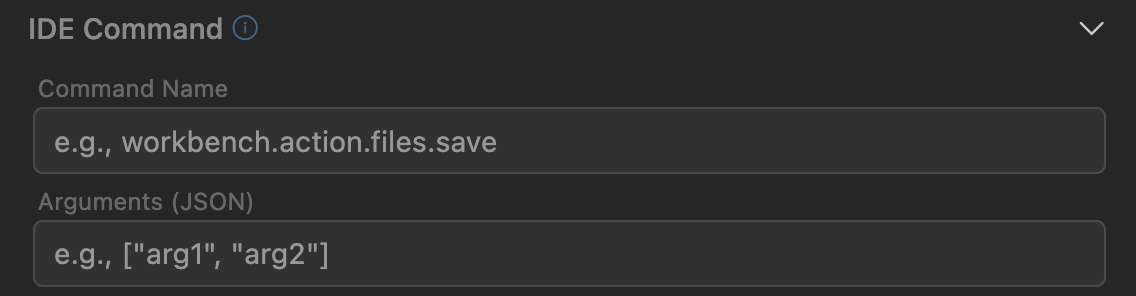
You can set an IDE command, which will be executed at the moment this step executes. This mechanism allows you to manage the environment within your workflow: open a new chat, thus resetting the context, launch project compilation through npm tasks, create new files, and much more.
Nested Steps
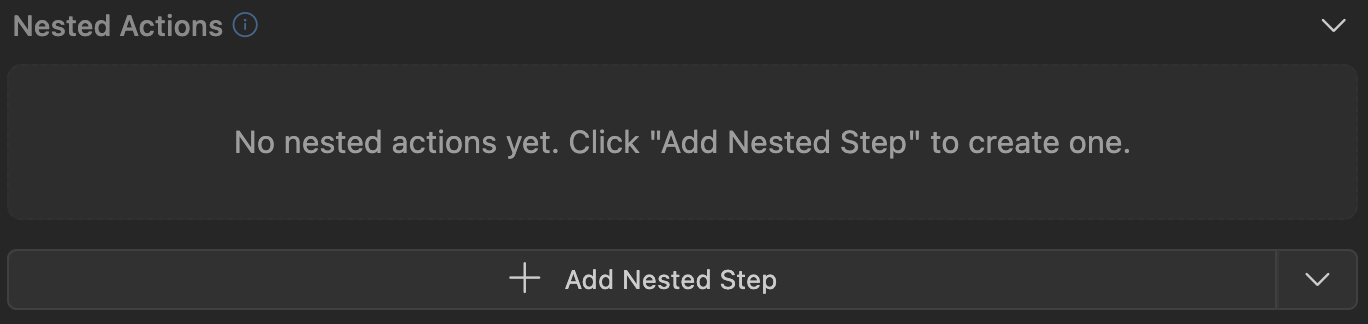
You can create nested steps that will be executed at the end of the current step's execution (after its main actions for overwriting prompts, launching the AI agent, and so on have already been executed). This mechanism works exactly the same as the main steps in a workflow: you can create additional actions, references to other workflows, run scripts, and so on. Thanks to the ability to create as many nested steps as you want (and nest them within each other), you can describe any scenario you envision using workflows.